


You open Slack to answer one question and find five more waiting. A bug report sits in a busy channel, a product request is buried in a thread, and a manager asks in a direct message for an update someone already posted days ago. Everyone is communicating, but nobody can reliably tell which conversation became owned work.
A well-configured Linear Slack integration fixes that gap by giving Slack a controlled front door and Linear a durable system of record. The difficult part isn't installing the app. It's deciding which requests should become issues, where they should go, who owns triage, and which notifications deserve attention.
Table of Contents
- Why Your Slack Is Swallowing Your Work
- Connecting Your Workspace and Setting Permissions
- Three Ways to Trigger Issues from Chat
- Building Channel Routing and Webhooks
- Mastering Notification Hygiene and Threads
- Troubleshooting Common Sync and Routing Issues
Why Your Slack Is Swallowing Your Work
A Slack message feels actionable because it's immediate. Someone reports a checkout bug in #general, a developer replies with a workaround, and a product manager says they'll investigate. The thread looks productive until the channel moves on. Later, nobody remembers whether the issue was filed, who accepted it, or whether the workaround solved the underlying problem.
That pattern repeats because conversation and execution have different jobs. Slack is optimized for fast interaction. Linear is optimized for ownership, status, prioritization, and durable context. Pinging a Linear issue into Slack creates visibility, but visibility alone doesn't create a workflow.

The integration has matured beyond simple alerts. Linear documented Slack capabilities including issue creation from messages, thread syncing, personal and channel notifications, and rich unfurls in 2021 on its Slack integration documentation. Linear later added two-way Slack thread sync in 2023, allowing replies, screenshots, and files to mirror into an issue's comment thread. That matters because the original discussion can remain attached to the work instead of being reconstructed from memory.
Practical rule: Slack should be the place where requests arrive. Linear should be the place where accepted work gets managed.
The transition becomes essential when a team can no longer rely on personal memory and channel visibility. Remote teams feel this sharply because time-zone gaps turn an informal “someone will handle it” into a missed handoff. Guidance on how to streamline workflows across time zones is useful here, but the operational principle is simple: convert decisions into assigned records before the conversation disappears.
A practical setup also clarifies team communication boundaries. The team communication tools guide can help you assess the broader stack, but Linear and Slack should not become two competing queues. Capture the request once, preserve the relevant context, and make ownership visible.
Connecting Your Workspace and Setting Permissions
Start with the native connection rather than automation. Linear's documented integration supports creating, updating, and viewing issues from Slack, along with rich previews and synchronized discussion through the official Slack integration guide.
Establish the connection
Use this sequence:
- Open Linear settings. Go to the integration area and select Slack.
- Authenticate the workspace. Choose the Slack workspace that should connect to Linear and review the requested access.
- Confirm the installation. Complete Slack's authorization flow, then return to Linear to verify that the workspace appears as connected.
- Test with a low-risk message. Use a test channel or an unimportant request before rolling the workflow into active product channels.
- Check unfurls. Paste a Linear issue into Slack and confirm that its title, status, and useful context render as expected.
The exact labels may change as both products evolve, so use Linear's current settings and authorization screens as the source of truth. The important operational decision happens after installation: determine who can create issues, which teams are valid destinations, and which channels may trigger intake.
Keep permissions narrow
Don't give every channel the same behavior. A product team may allow issue creation in a dedicated request channel while keeping #general discussion-only. Customer-facing or cross-functional channels need an explicit owner who reviews requests before they enter an engineering backlog.
Set a default destination for each approved intake path. Require a team, project, and issue title wherever the integration allows it, then define who can change those fields during triage. Broad access feels convenient at first, but it often creates duplicate issues and inconsistent routing.
Before launch, document three rules in the relevant Slack channel:
- Accepted requests: what deserves a Linear issue.
- Required context: reproduction steps, customer impact, screenshots, or links.
- Triage ownership: who checks the channel and resolves duplicates.
This gives the integration a secure pipeline rather than an uncontrolled message copier.
Three Ways to Trigger Issues from Chat
The best intake method depends on how much judgment the request needs before it enters Linear. Manual actions preserve human review. Dedicated routing creates consistency. Linear Asks widens access for people who need to submit work but don't work inside Linear.
Manual message actions
Use the message action when a teammate recognizes a clear task inside an existing conversation. Select the message's action menu, create a Linear issue, choose the destination team, and edit the title or description before submitting.
This works well for an internal bug with enough context already present. It also gives the person creating the issue a chance to remove speculation, add acceptance criteria, and avoid filing a duplicate. The downside is obvious: someone must notice the request and take the action. Manual capture won't protect you from every buried message.
Dedicated intake channels
A channel such as #product-requests or #engineering-intake creates a visible boundary between discussion and work submission. Automation can watch that channel, or a designated triager can convert selected messages into issues.
This approach works when the team needs a review step. It prevents every casual comment from becoming backlog data and lets the triager merge duplicates before assigning work. The channel needs a clear purpose, though. If people use it for general debate, routing quality will decline quickly.
Linear Asks
Linear's Asks workflow is designed for requests from Slack users who may not have a Linear account. Linear states that anyone in the workspace can file a request by mentioning @Linear Asks, with the request routed into the appropriate team through the intake system, as described in its Linear Asks documentation.
That makes Asks a strong fit for support, operations, sales, and other groups that need to report product problems without learning Linear's full interface. It also changes the triage burden. When access expands, you need routing rules, duplicate checks, and an owner who can turn vague requests into actionable issues.
| Method | Best For | Requires Linear Account |
|---|---|---|
| Manual message action | Clear, occasional internal tasks | Usually, for the creator |
| Dedicated intake channel | Controlled team submissions and review | Depends on the configured workflow |
@Linear Asks | Cross-functional or external workspace requests | No, for the requesting Slack user |
Treat these methods as different gates, not interchangeable buttons. Manual actions are selective, channels are governed, and Asks is broad intake. A mature workflow may use all three, but each should have a defined owner and destination.
Building Channel Routing and Webhooks
Channel routing works when it reflects how the team already organizes work. Create a small number of meaningful intake channels, map them to clear Linear teams or projects, and keep the mapping understandable enough that a new teammate can follow it without asking in a private message.
Linear's current Slack model includes automatically created project channels for new projects, automatic addition of project members, and default project updates, according to the dated details in its Slack documentation. That capability is useful for project visibility, but it shouldn't replace deliberate intake design. A project channel can broadcast progress while a request channel collects untriaged work.
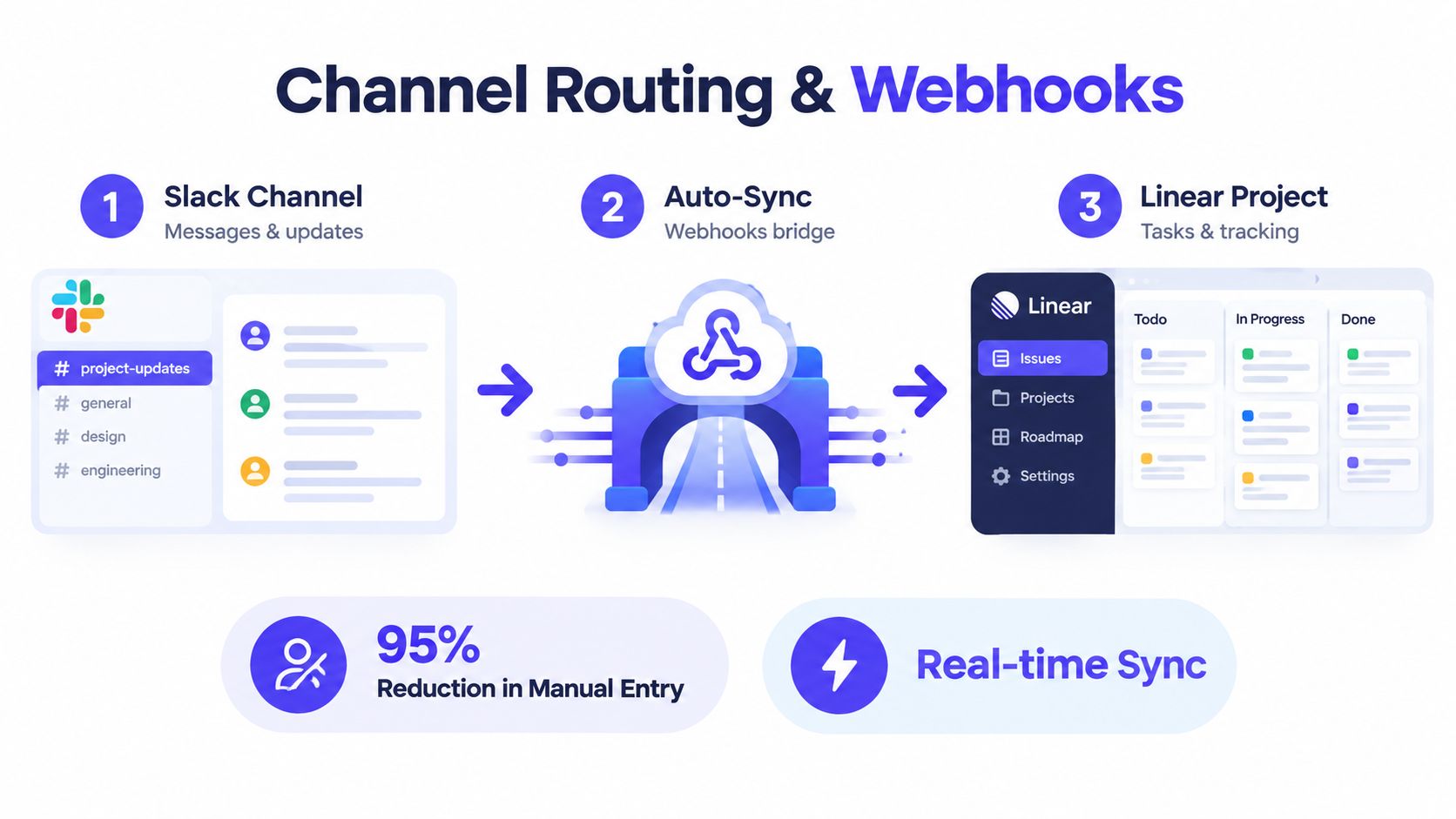
Design the route before automating it
A sensible route has four parts:
- Source channel: where a request starts.
- Qualification signal: a message action, mention, form event, or approved trigger.
- Linear destination: the team, project, label, and default status.
- Feedback path: where the requester sees the created issue and later updates.
Don't automatically turn every message in a busy channel into an issue. That creates a second inbox inside Linear, filled with jokes, questions, duplicates, and incomplete reports. Use a dedicated channel, a reaction-based trigger, or @Linear Asks so the sender makes an intentional request.
Use webhooks for external events
Webhooks make sense when another system already knows that a Linear event should occur. For example, an approved form submission, monitoring event, or customer workflow can send structured data to an intermediary, which then creates or updates a Linear issue. Keep the payload focused on information the team can act on, and make the originating record easy to find.
If you're building a separate event bridge, review the PostPulse webhooks setup for practical webhook concepts such as event delivery and endpoint handling. The integration should still include safeguards for retries, duplicate events, and failures. A webhook that retries without notification can create multiple issues unless you include a stable external identifier and check whether the request already exists.
Slash commands can speed up controlled actions, but they need the same governance as message actions. Define valid commands, destinations, and error responses. For teams comparing integration patterns across project tools, this Jira integration guide offers useful context for thinking about routing boundaries rather than treating automation as a simple connector.
The operating model is more important than the bridge itself. Slack captures intent, the routing layer qualifies it, Linear stores the commitment, and Slack reports back only what people need to know.
Mastering Notification Hygiene and Threads
An integration that sends every status change into every channel will lose trust. People mute noisy channels, ignore repeated alerts, and eventually miss the one update that needs action. Notification policy should start from the decision a recipient must make, not from every event the software can emit.
Linear supports personal and channel-specific notifications, rich issue unfurls, and synchronized Slack discussions through its documented Slack connection features. Configure those capabilities around audience and urgency. Engineers may need assignment and blocker updates. Executives may need project-level movement. Requesters may need confirmation and resolution, not every internal comment.
Separate signals from conversation
Use these policies as a starting point:
- Assignments and blockers: notify the responsible person or delivery channel.
- Status changes: post to a project channel when the change affects coordination.
- Routine comments: keep them in the issue thread unless someone is mentioned.
- Resolution updates: notify the original requester and the team responsible for follow-up.
- Low-priority movement: use a digest or quiet channel rather than individual pings.
Thread sync is valuable because replies, screenshots, and files from Slack can mirror into a Linear issue's comment thread. That preserves the evidence behind a decision, but it also means an unmoderated Slack thread can become noisy Linear context. Ask participants to keep implementation debate in the linked thread and move durable decisions into the issue description or a concise comment.
Notification policy: If a person doesn't need to decide, respond, or change priority, they probably don't need a ping.
Audit the setup after the first real work cycle. Look for duplicate notifications, project channels that nobody reads, issue updates sent to broad channels, and requests that receive no acknowledgement. Then adjust channel subscriptions and personal preferences. Notification hygiene isn't a one-time setting. It's part of maintaining the workflow.
Troubleshooting Common Sync and Routing Issues
A mirrored reply can vanish even when the Linear and Slack apps appear connected. Trace that failure from the message outward, rather than reinstalling both tools.
First, open the original Slack thread and confirm it is linked to the Linear issue. A pasted issue URL inside an unrelated thread does not establish thread sync. Check whether the reply contains an image or file, then test with a short text reply. If text appears but the attachment does not, inspect the file type, size, and permissions before treating the integration as unavailable.
Next, open the issue in Linear with the affected user's account. Confirm that the user can view the issue and that the Slack app still has access to the workspace and channel. A reply may be delivered correctly but remain invisible to someone who lacks issue or project access. If the thread is linked, permissions are valid, and no reply arrives, check the integration status and webhook delivery logs where an intermediary handles events.
Use the same pass for routing failures:
- Wrong destination: review the default team, project, labels, and channel-specific rules. A broad rule can send a valid request to the wrong queue.
- Duplicate issues: search Linear before filing. Add the existing issue link to the Slack thread and record the duplicate pattern for the intake owner.
- Missing intake: confirm that the requester used the configured channel or Asks route, then verify team membership and permission to create issues.
- Excessive alerts: remove broad subscriptions and retain assignment, mention, blocker, and resolution signals.
Routing needs an owner as well as configuration. Review failed requests after the first work cycle, identify repeated duplicates or unacknowledged asks, and narrow the rule causing them. The integration guides collection offers comparison points for authorization, event delivery, and routing diagnostics across tools.
SpecStory, Inc. offers Stoa, a multiplayer AI workspace that captures decisions, open questions, specifications, and executable context from team conversations, with permission-aware connections across tools such as Linear and Slack. Teams can visit SpecStory, Inc. to assess how it fits alongside their intake workflow.
Newsletter
Get new posts in your inbox
Bring your team together to build better products. Fresh takes on remote collaboration and AI-driven development.