


You paste a working snippet into a README, open the preview, and find that the rest of the page looks like code. Or the block renders correctly on GitHub but loses its colors in your documentation site. The code hasn't changed. The parser or renderer has.
When you're writing code blocks, Markdown has a dependable core, but highlighting, diagrams, and review suggestions belong to the platform around it. Knowing that boundary helps you publish examples readers can understand, copy, and run without repairing the formatting first.
Table of Contents
- Code Block Syntax at a Glance
- Copy-Paste Examples for Common Cases
- Common Pitfalls and How to Fix Them
- Pre-Publish Checklist for Code Blocks
Code Block Syntax at a Glance
Markdown code syntax at a glance
| Syntax | Delimiter | Language tag | Indentation needed | Best use |
|---|---|---|---|---|
| Fenced with backticks | Three or more backticks | Yes, after the opening fence | No | Default for READMEs, comments and docs |
| Fenced with tildes | Three or more tildes | Yes, after the opening fence | No | Samples that contain backticks |
| Indented block | Four spaces or one tab on every nonblank line | No | Yes, on every nonblank line | Older files and plain text without a language |
| Inline code | Single backticks around the text | No | No | Commands, filenames and variables inside a sentence |
- Inside a sentence: Use inline code for a command, filename, or variable.
- For a standalone sample: Use a fenced block with a language tag.
- When maintaining older files: Keep indented blocks only when you need to match the existing format.
GitHub's code-block documentation describes the familiar choices: indented blocks use at least four spaces, while fenced blocks use three or more backticks and can include a language identifier. Fences are the better default for new documentation because they distinguish the block boundary from the indentation that belongs to the program itself.
The same Python sample in each format
The following table shows the source layouts side by side. The spaces in the indented version are actual leading spaces, not characters to type.
| Fenced source | Indented source |
|---|---|
```python
def greet(name):
    return f"Hello, {name}"
``` | def greet(name):
return f"Hello, {name}" |
Both forms produce a code block. Only the fenced version carries the python metadata that a compatible renderer can use for highlighting.
An indented block after a paragraph needs a blank line to separate it from the paragraph. Inside a list, it also needs indentation relative to the list item, which makes the source harder to maintain. A fenced block makes those boundaries easier to recognize when someone edits the example.
Default choice: Write new standalone examples with fences. Preserve indentation within the sample for the programming language, not as a substitute for visible block boundaries.
Why this distinction matters
Markdown isn't limited to specialist documentation tools. In the 2024 Stack Overflow Developer Survey, Markdown files were used by 29.1% of all respondents.
You'll still encounter indented blocks in old wiki pages and files written before fences became common. When revising those files, check the surrounding structure before converting anything, especially nested lists. For broader document structure, this guide to how to use Markdown explains how code samples fit alongside headings, links, and ordinary paragraphs.
Fence Rules for Backticks, Tildes and Nested Samples
The CommonMark specification defines the essential fence rules: use at least three consecutive backticks or tildes, don't mix the characters, indent the opening fence by no more than three spaces, and close it with the same character repeated at least as many times.
These are CommonMark rules, not promises about every product that accepts Markdown-like input. A chat editor or legacy wiki may implement only part of the syntax.
What belongs on each fence line
- Opening delimiter: Choose backticks or tildes and keep the run uninterrupted.
- Closing delimiter: Use the same character, with a run at least as long as the opener. Don't append a language name.
- Surrounding whitespace: Blank lines aren't required around fenced blocks in CommonMark, although they make source files easier to read.
- Literal content: Asterisks, links, and other inline Markdown inside the block remain text rather than becoming formatting.
An opening fence can interrupt a paragraph. That differs from an indented block, where a missing blank line can prevent the parser from recognizing code.
Fence length by what the sample contains
| Sample contains | Fence to use | Opening line example |
|---|---|---|
| No backtick runs | Three backticks | ```python |
| Three backticks inside | Four backticks | ````markdown |
| Four backticks inside | Five backticks | `````markdown |
| Only tildes inside | Three backticks | ```text |
| Backticks and tildes inside | Five backticks if longer than the inner backtick run, or tildes longer than the inner tilde run | ~~~~~text, when longer than the inner tilde run |
Choose the outer delimiter deliberately
Say your README teaches readers to write a Markdown fence. Open the outer example with four backticks followed by markdown, place the inner triple-backtick example inside it, and close with four backticks.
If the sample contains both backticks and tildes, inspect whichever character you choose for the outer fence. The illustrative ~~~~~text opener isn't automatically safe: it must be longer than any tilde run inside the example.
Choose an outer fence longer than the longest run of that same delimiter in the sample.
For ordinary Python without backticks, the standard triple-backtick fence is sufficient. You don't need extra delimiters just because the code contains quotation marks or parentheses.
Language Tags for Syntax Highlighting
A misspelled tag is the quietest failure in Markdown: ```pythoon still renders as a tidy code block, just without colors, and nothing warns you. That behavior comes from how renderers treat the info string, the text after the opening fence. Its first word commonly names the language, and a renderer may turn python into class="language-python" on the HTML code element so a highlighting library can style it. The tag belongs on the opening fence only; the closing fence takes no info string.
The CommonMark specification's info-string rules trim leading and trailing whitespace and prohibit backticks in an info string that follows a backtick fence. That is where the universal rules stop. CommonMark requires no syntax highlighting and says nothing about how a renderer should interpret the word, so every platform keeps its own language list and alias table. A tag that colors a block on GitHub can leave the same block plain in a different renderer.
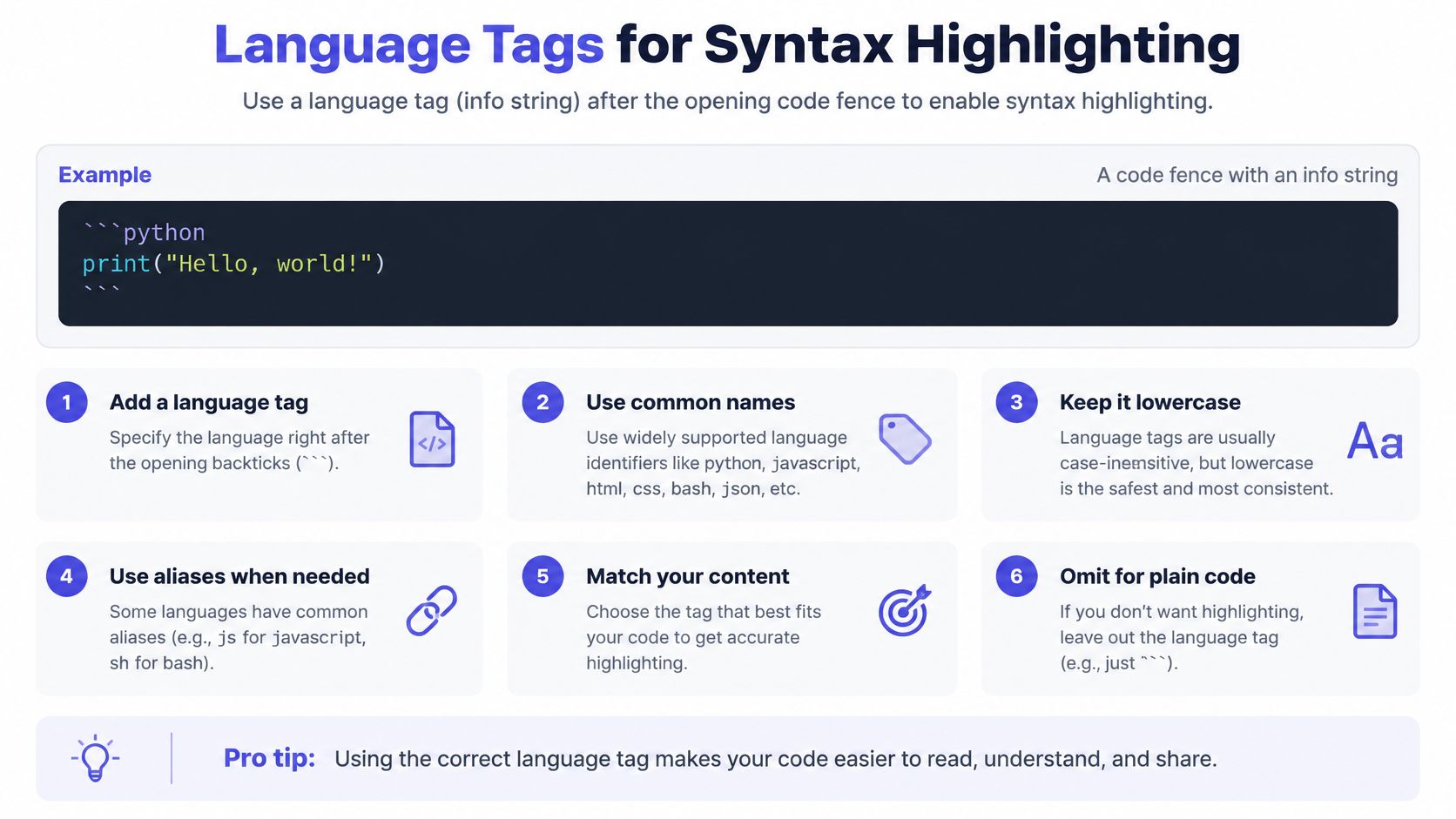
Pick a tag your renderer recognizes
Common language tags and aliases
| Tag | Language | Common aliases |
|---|---|---|
python | Python | py |
javascript | JavaScript | js |
typescript | TypeScript | ts |
bash | Shell commands | sh, shell; check zsh separately |
json | JSON data | None listed |
yaml | YAML config | yml |
html | HTML | xhtml, markup |
css | CSS | None listed |
diff | Patch output with added and removed lines | None listed |
markdown | Markdown source | md |
text | Plain output without highlighting | plaintext, txt |
Each highlighting library maintains its own alias table, so treat these entries as conventions rather than guarantees. In particular, don't assume that a renderer treats zsh as interchangeable with Bash, even when both tags are available.
Keep the info string to one lowercase word unless the destination documents additional options. For example, use an opening line of ```python rather than adding an unexplained filename or line-highlighting instruction, since anything the renderer doesn't expect can silently disable the highlighting you wanted.
- For generated Markdown: Normalize language names against the destination's supported aliases before writing the file.
- For custom HTML pipelines: Escape or sanitize rendered HTML independently. Safe handling by downstream plugins remains a separate job from the Markdown source.
- For plain output: Use
textwhere supported and confirm that automatic language detection hasn't added unwanted colors.
Inline Code and Escaping Special Characters
Use a code span for a short command or identifier within a sentence: npm install, settings.yaml, or user_name. Backticks tell the parser to treat the content as code rather than emphasis or a link.
Keep code spans on a single source line for predictable editing. CommonMark can accept line endings inside spans and normalize them to spaces, but a span isn't a substitute for a multiline code block.
Show the character, not the formatting
The table displays the Markdown you should type. Its pipe examples show a literal backslash followed by a pipe, because the surrounding table also needs protection from cell separators.
Showing special characters
| Goal | Inside a code span | Outside code |
|---|---|---|
| Show a literal backtick | | ` |
| Show asterisks or underscores | | ** or _ |
| Show a backslash | | \ |
| Show a pipe inside a table cell | | | |
To include a backtick inside a span, use double backticks as the delimiters and place a space on either side of the content. Those padding spaces let the inner backtick remain distinct from the surrounding delimiter.
For example, the source `name`name. You don't need to insert backslashes before those inner backticks.
Why unwanted backslashes appear
Backslash escapes don't work normally inside code spans. If you put a backslash before an asterisk inside inline code, readers see the backslash too.
Outside code, the rule changes: a backslash can stop a Markdown punctuation character from triggering formatting. Use that when you're discussing an asterisk as punctuation rather than presenting a code expression.
Table exception: In GitHub-style Markdown tables, escape a pipe even when it's inside a code span. Table parsing can otherwise treat it as a cell boundary.
Tables themselves aren't part of core CommonMark, so test this behavior in the destination's table implementation. Use a code span when the text should look like code; use backslash escapes for special characters in ordinary prose.
GitHub-Flavored Markdown Code Block Specifics
GitHub Flavored Markdown, or GFM, is GitHub's dialect for user content such as READMEs, issues, pull request comments, and wikis. GitHub's creating and highlighting code blocks guide documents fenced examples and language identifiers for its rendering environment.
Separate GFM parsing from GitHub product features. Matching fences and literal code content belong to the underlying CommonMark model. Colors, diagrams, and interactive review actions require additional renderer or application support.
GitHub behavior isn't a portability guarantee
| Tag or feature | Behavior in GitHub's supported context | What to expect elsewhere |
|---|---|---|
diff | Highlights additions and removals, typically green and red | Many other highlighters support it too |
suggestion | Proposes a change in pull request review comments | Requires review-tool integration |
mermaid | Renders a diagram in supported Markdown surfaces | Requires Mermaid integration |
math | Renders formulas in supported contexts | Requires math-rendering support |
These features aren't all exclusive to GitHub, and they aren't all available in every GitHub surface. A suggestion block, for example, has a specific review workflow rather than acting as an ordinary README code example.
A diff's source might look like this:
```diff
- mode = "draft"
+ mode = "published"
```
The leading signs communicate the change even when a renderer doesn't add colors. That makes the example more portable than an explanation that relies only on green and red.
Keep list examples attached
When a fenced block belongs to a list item, align the fence and its content with the start of that item's text. Don't guess based on how much indentation looks attractive in the editor.
If the block falls outside that column, the parser may treat it as a separate block rather than part of the item. Preview the actual GitHub surface where readers will encounter it, particularly when moving content between a README and a pull request review.
Copy-Paste Examples for Common Cases

Copy the contents inside each indented sample, including the fence characters. A fence works like a labeled box: the opening and closing lines must match, and the language tag is only a hint for coloring.
Python and nested Markdown
```python
    def greet(name):
        return f"Hello, {name}"
```
Portable part: the triple-backtick fence and the python tag are widely understood. Platform-dependent part: the exact Python color palette changes by renderer. Highlighting also does not prove generated code is safe to run; PlotStudio AI's safe Python code generation practices are a relevant companion when preparing generated snippets for readers.
````markdown
```markdown
**This stays literal inside the displayed example.**
```
````
Portable part: an outer fence with more backticks than the inner sample keeps the inner triple-backtick fence visible. Platform-dependent part: some preview tools style nested Markdown differently, so inspect the destination page before publishing documentation inside documentation.
Installation commands inside and outside a list
```bash
npm install
npm run build
```
Portable part: a bash block without $ prompts gives readers commands they can paste cleanly. Keep commentary outside the block unless it is a valid shell comment such as # build production assets.
1. Build the project:

   ```bash
   npm run build
   ```

2. Check the output.
Portable part: the fenced command remains inside the numbered item when the fence and code sit under the item text column. Platform-dependent part: list previews can disagree on loose spacing, so the rendered list is the source of truth.
Changes, structured data, and inline commands
```diff
- status = "draft"
+ status = "ready"
```
Portable part: the - and + markers communicate the edit in plain text. Platform-dependent part: green and red highlighting depends on diff support.
```json
{
  "status": "ready",
  "enabled": true
}
```
Portable part: the object stays readable even where json highlighting is absent. Copy through the closing fence when placing it inside a longer page.
Run `npm install` from the project directory.
Portable part: single backticks style only npm install while the instruction remains normal prose. Keep that span on one source line so the delimiter pair stays intact.
The fence rules above travel well across CommonMark-compatible renderers. Tag colors, diagram blocks, review suggestions, and math rendering are the features to verify on the exact destination. When examples leave a repository, use these practices for sharing a code example so recipients get the snippet plus the context needed to run it.
Common Pitfalls and How to Fix Them
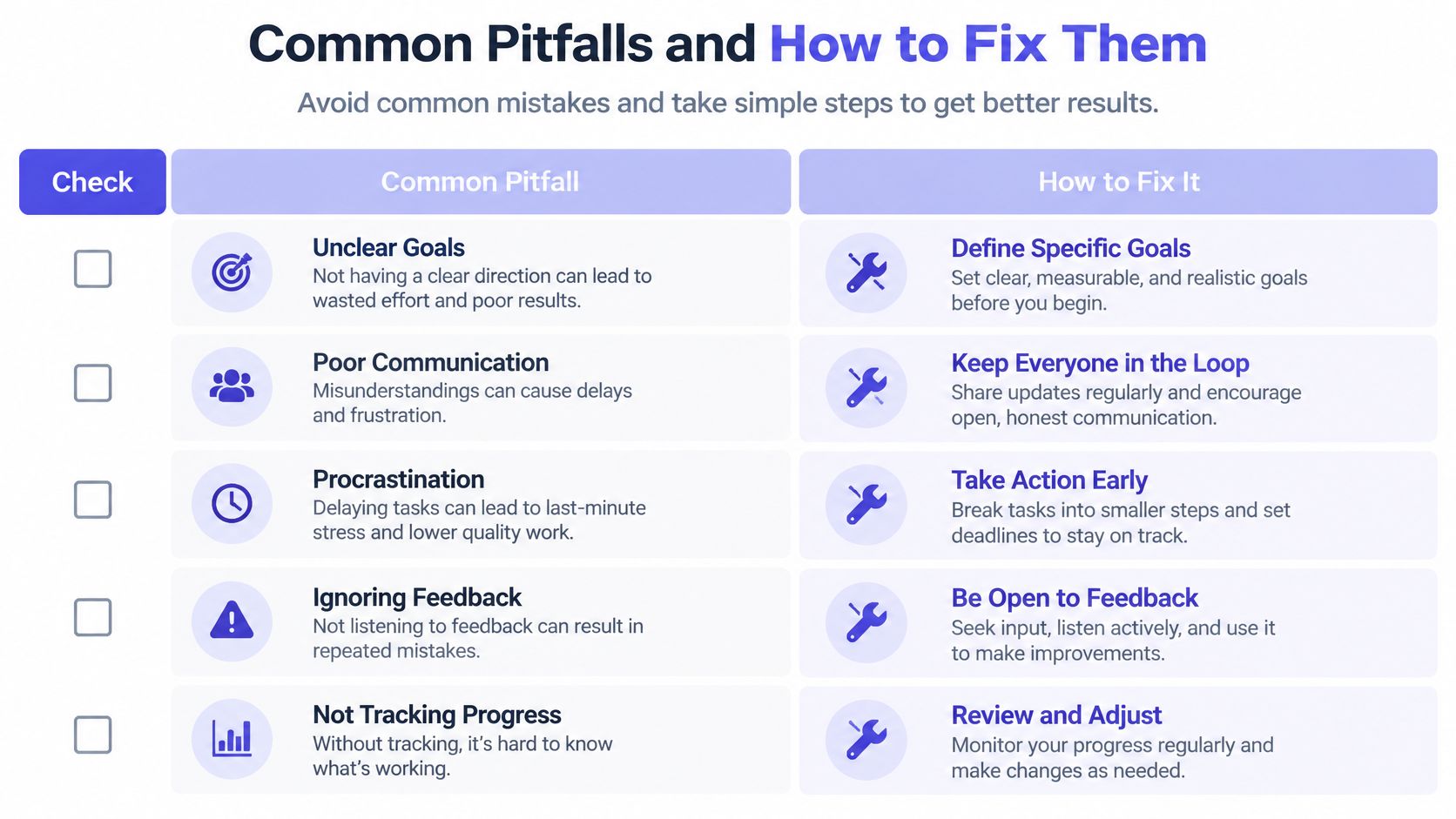
A page that suddenly turns monospaced usually has a boundary problem, not a highlighting problem. Treat the fence like a pair of brackets in math: if the closer is missing, short, or made from the wrong character, everything after it gets swallowed into the block.
Code block symptoms, causes and fixes
| Symptom | Likely cause | Fix |
|---|---|---|
| Rest of the page displays as code | Closing fence missing | Add a closing fence of the same character and length |
| Block ends early or shows backticks | Outer fence conflicts with a delimiter inside the sample | Open and close with a longer fence |
| Closing fence ignored | Mixed backtick and tilde characters | Use the same character for both fences |
| No color highlighting | Missing or unsupported language tag | Use a supported tag such as python or bash |
| List item code falls out of the list | Fence not indented to the list text column | Indent the fence and its content to the list text start |
| Indented block shows as paragraph text | No blank line before the block | Add a blank line before the indented block |
| Table row splits into extra cells | Unescaped pipe inside a cell | Escape the pipe with a backslash |
| Inline code shows raw backticks | Delimiter pairing disrupted during a line edit | Keep the span on one source line and match its delimiters |
Repair boundaries before changing tags
An unclosed fence is the first thing to check when everything below a snippet becomes monospaced. Look immediately after the intended final code line, rather than changing the code itself.
A closing fence that is shorter than the opener also fails to close the block. Opening with backticks and closing with tildes fails in the same way, because the delimiter characters have to match. These rules hold across CommonMark-style renderers; platform extras such as which language names get color are the layer that can change between GitHub, a docs site, and a chat preview.
Diagnose silent failures separately
A list alignment problem can leave valid code in the wrong place. Move the whole block, including its delimiters, to the item's text column rather than indenting only the code lines.
Missing colors are different: the block may already be structurally correct. Check the language spelling and the renderer's supported names before rewriting the fence. A tag that GitHub recognizes can still produce a plain block in a stricter destination, so treat highlighting as the last variable after boundaries and nesting are clean.
A line break alone doesn't invalidate a CommonMark code span. If raw backticks appear, inspect the delimiter pairing and any editor transformations; keeping the span on one source line is a useful maintenance habit, not a universal parsing requirement.
Debugging order: Fix block boundaries, then nesting, then highlighting. Cosmetic changes won't repair a block the parser hasn't recognized.
If an agent is generating these repairs, Beam's model picks for autonomous coding agents can inform that tooling decision. Still review the resulting Markdown in the destination renderer rather than treating generated formatting as already validated.
Pre-Publish Checklist for Code Blocks
- Preview the destination. Open the file where readers will read it. Confirm that diagrams, formulas, and review-only features behave as intended.
- Inspect fence pairs. Search for delimiter lines and check that each intended opener has a compatible closer. Don't count a delimiter shown inside an example as the outer closing fence.
- Check nested samples. Inspect the longest delimiter runs inside documentation examples and choose an outer fence that won't collide.
- Validate language names. Use supported tags or aliases. Remove undocumented info-string options rather than assuming the renderer understands them.
- Review list alignment. Confirm that each nested fence and its contents align with the list item's text.
- Protect table cells. Escape pipes inside cells, including pipes displayed as inline code, and inspect the rendered table.
For broader publishing workflows, Trupeer Inc.'s technical documentation resource and these best practices for technical documentation offer useful context beyond snippet formatting. In our workflow, sessions are saved as git-friendly Markdown, so they can be committed to a repo for team visibility.
Keep meeting notes, specs, and docs in version control so reviewers can check code examples alongside the changes they explain.
SpecStory, Inc. offers tools that save coding sessions as Markdown and keep prompts connected to the code they produce. Visit SpecStory, Inc. to bring that context into your repository, then use the checklist above to review the code blocks your team shares.
Newsletter
Get new posts in your inbox
Bring your team together to build better products. Fresh takes on remote collaboration and AI-driven development.