


Two laptops, one shared folder, and a Markdown PRD that looked fine until someone opened it after lunch. If you've ever watched a clean sync replace a teammate's edit with your older copy, you already know the problem isn't speed. It's that nobody agreed on what command line file sync was supposed to protect.
Table of Contents
- When a Copy Is Not a Sync
- How Command Line File Sync Moves Only the Difference
- Proving a Sync and Keeping It Secure
- How to Choose a Command Line File Sync Tool
- Command Line Patterns for Everyday File Sync
- Syncing Team Artifacts Across Laptops
- Your Next Command Line File Sync
When a Copy Is Not a Sync
A small product team keeps its working life in ordinary files. There's a PRD in Markdown, a folder of meeting transcripts, design exports, and a few screenshots, spread across Mac and Windows laptops. Everyone can open everything in the editor they already like, and that freedom is the point.
Then two people edit the same note offline. One tightens the problem statement on a train. The other rewrites the acceptance criteria at a kitchen table. A scheduled command runs, finishes with a zero exit code, and the later copy replaces the earlier one. No error, no warning, and no copy of the losing edit unless someone happened to keep one.
That outcome isn't a failure of the transfer. It's a failure of the job description. The tool did exactly what a one way copy does, which is make the destination look like the source. Calling that synchronization hides the decision that mattered, which version should win, and whether both edits deserved to survive.
Four Jobs That Get Blurred Together
Teams routinely use one word, sync, for four different jobs. Backup means keeping a recoverable copy somewhere else. One way deployment means pushing a known good tree to a server or a shared folder. Bidirectional sync means changes can originate on either side and still converge. Collaborative conflict handling means two people can change the same file and the system preserves both edits for a human to reconcile.
A mirror is excellent at the first two jobs and dangerous at the last two. The confusion gets expensive in local first and offline first workflows because plain files stay editable everywhere, all the time. Nothing in the filesystem itself records intent, authorship, or which edit came from which conversation.
A fast mirror can increase coordination risk when multiple people edit the same file independently.
The same caution applies lower in the stack, where people who clone a whole drive still have to avoid boot failures after cloning because a byte for byte copy and a working system aren't the same thing. Copies succeed or fail on details the copy itself doesn't announce. File sync has the same trap at the folder level.
So the useful question isn't which command copies fastest. It's which job you have, how differences move once you've named it, how you prove a run did what you intended, and what happens when two active contributors touch the same artifact. Get the job wrong and every flag you add afterward just makes the wrong outcome happen more reliably.
How Command Line File Sync Moves Only the Difference
Simple copy commands treat a changed file as a whole new file. Change one paragraph in a large document and the tool sends the entire thing again. Command line sync tools earned their place by refusing to do that, and the idea comes from a specific piece of work.
In 1996, Andrew Tridgell and Paul Mackerras described a way to make a file on one machine identical to a file on another without transferring both complete files first, an approach set out in their technical report on the rsync algorithm. The receiver doesn't ship its copy anywhere. Instead it divides the file it already has into blocks and generates a signature for each block, then sends those signatures to the sender.
The sender takes the newer version and searches it for blocks that match those signatures. Importantly, it can find a match even when content has shifted, so a paragraph that moved down the page still counts as already present. Only the data that matches nothing crosses the link, along with instructions for rebuilding the file from existing blocks plus the new pieces.
A Revised Chapter, Not a Remailed Book
Think of shipping a revised chapter to a coauthor who already has last week's draft. You don't reprint the book. You mark the paragraphs that didn't change, send the rewritten ones, and note where each piece belongs. The coauthor assembles the new chapter mostly from pages already on their desk.
That analogy explains where the savings live. When source and destination are similar, which is true for an appended log, a lightly edited document, or a source tree carrying a small patch, most blocks match and very little travels. On a slow or high latency link, and across repeated updates of the same tree, that difference is the whole point of the design.
When the two files barely resemble each other, the method still works correctly. It just finds few matches, so it sends most of the content and saves little. Correctness doesn't depend on similarity, only the efficiency gain does, which is why the approach degrades gracefully instead of failing on heavily rewritten files.
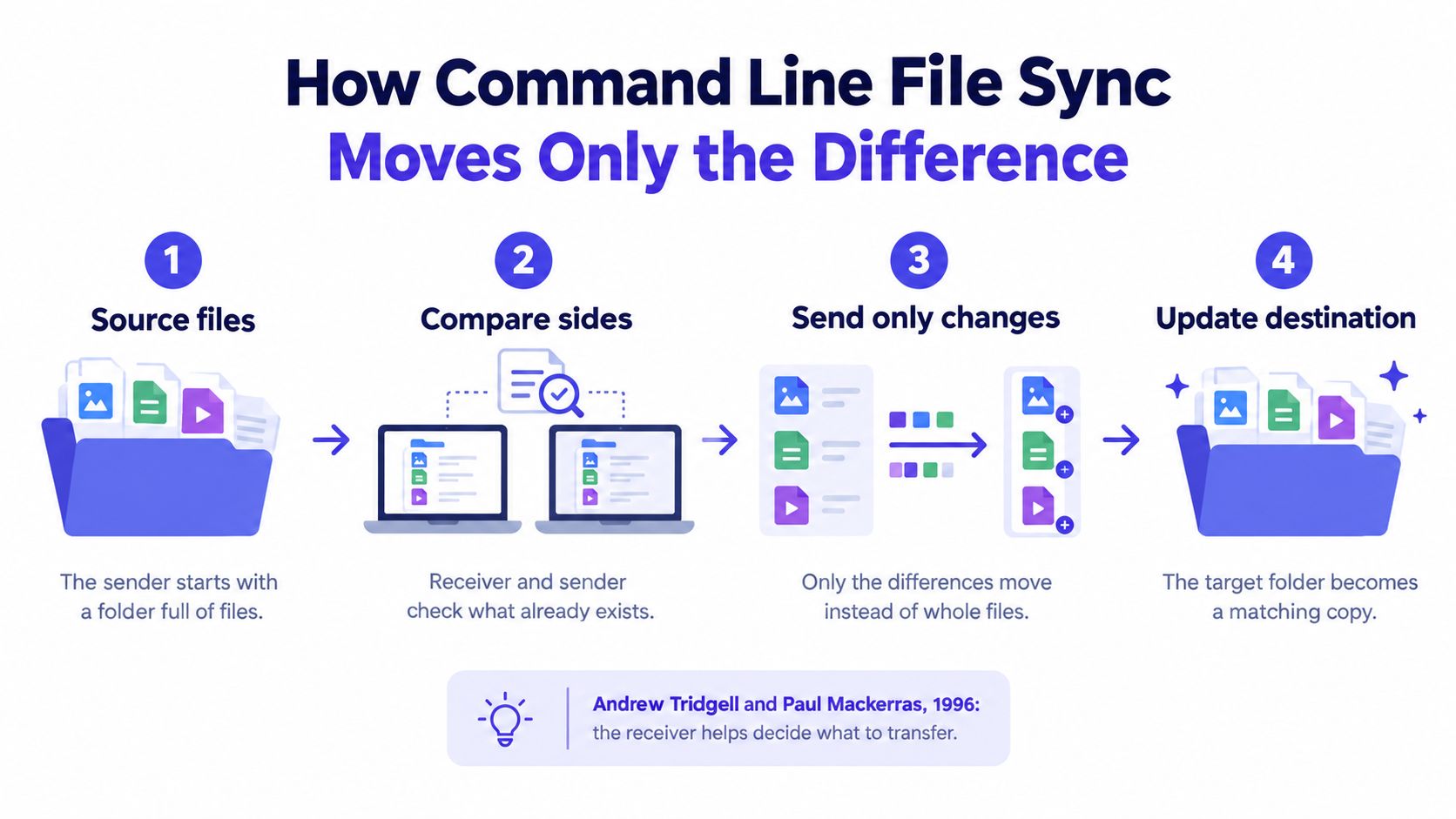
Delta transfer also doesn't skip integrity checking. After reconstruction, an end to end checksum on the transferred file confirms the rebuilt copy matches what the sender intended. You're sending less, but you're still verifying the result as a whole.
That's the transfer idea, and it's elegant. It answers how bytes get chosen. It doesn't answer whether the run you just finished moved the right set of files, preserved the right permissions, or deleted things on purpose.
Proving a Sync and Keeping It Secure
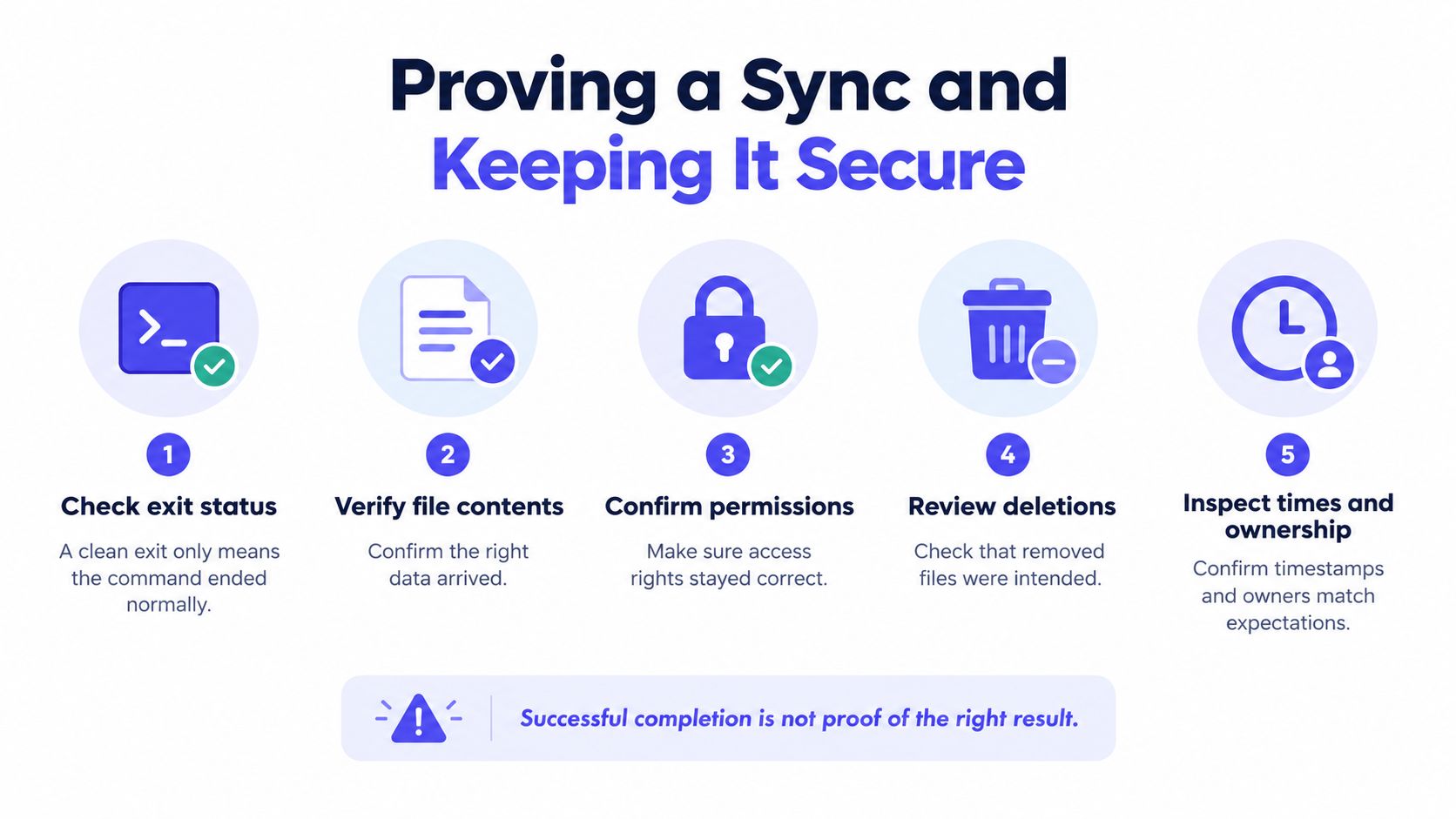
A command that exits cleanly has told you one thing, that it ended normally. It hasn't told you the intended files arrived, that deletions were deliberate, that permissions survived, or that the artifact set matches the decision your team made that morning. Treating a clean exit as proof is how small teams without dedicated IT staff lose work while their logs look green.
Start before the transfer, not after. If a run can delete or overwrite, take an immutable snapshot or a plain backup of the destination first, so a bad mirror is an inconvenience instead of a loss. That single habit changes every later decision, because rollback becomes a real option rather than a hope.
Reading Failures Instead of Hoping Through Them
Failures aren't all the same, and your response shouldn't be either. Rsync can resume interrupted transfers and returns distinct nonzero statuses for partial transfer errors, a behavior covered in SystemRescue guidance on backing up and transferring data with rsync, which also notes that CERT/CC reported six vulnerabilities in rsync 3.3.0 and below, including arbitrary code execution and unauthorized file read or write when a client connects to a malicious or compromised server.
- Classify the failure: Separate a partial transfer you can safely resume from a mismatch that suggests the wrong source or destination.
- Decide from the log: Retry when the log shows interruption, roll back when it shows unintended deletions, and escalate when you can't explain the file set.
- Verify a sample: Check contents, permissions, and deletions on the files that matter instead of trusting the summary line.
Checksums, Transport, and Patching
Verification has levels. Size and timestamp checks are cheap and fine for routine runs, while content checksums cost disk reads and belong in audits or recovery runs where you need stronger evidence. Choosing deliberately between them is part of designing the workflow, much like the broader decisions in local data storage choices for plain file workspaces.
Security sits in the same runbook. Use encrypted transport, give the sync job least privilege credentials that can only touch the trees it owns, and patch the sync tool itself, because a dry run preview does nothing about a compromised server. Anyone planning a larger move can borrow the same discipline used to protect data during file server migration, where access control and validation matter as much as the copy.
Finally, make the event traceable to a person and a reason. When shared project context lives as ordinary files, someone should be able to ask which conversation or commit a synced artifact came from and get an answer. Proof isn't just that bytes arrived. It's that the right bytes arrived, for a reason you can name.
How to Choose a Command Line File Sync Tool
Choose by job, not by which tool your last team used. A backup tool, a deployment mirror, a bidirectional sync, and version control all move files, but they make opposite promises about direction and conflict. Buying the wrong promise is how a tidy script becomes a data loss mechanism.
Rsync is the clearest example. It's a superb one way tool for mirrors, backups, and pushing a known tree to a server. It copies in one direction at a time, and it doesn't reverse sync or resolve conflicts, so pointing it at two active editors and hoping the timestamps sort it out is a category error.
Which Command Line File Sync Job You Actually Have
| Job | Direction | Conflict behavior | Fits when |
|---|---|---|---|
| Backup | One way to a safe copy | Destination never wins | You need recovery, not collaboration |
| Deploy or mirror | One way from a known source | Source always wins | Publishing a build or a reviewed tree |
| Bidirectional sync | Both sides can originate changes | Must detect renames, deletions, and clashes | Two laptops both create and edit files |
| Version control | Changes merge through history | Merges are explicit and reviewable | The artifact is code with a real merge story |
| Local first workspace sync | Both sides, around shared artifacts | Both edits stay visible and traceable | The files are team decisions, not build outputs |
Performance evidence supports measuring before you commit. One USENIX study of block wise sync for multi gigabyte data cut synchronization time by up to two orders of magnitude versus traditional checksum sync in its test environment, while a cloud delta sync study saw edited file traffic stay between 1 KB and 120 KB when average files were about 1 MB, with sync times 15 to 20 times shorter than a conventional rsync based comparison for the operations it tested, as reported in USENIX research on block wise synchronization at scale. The practical lesson is to measure both bytes moved and scan time, because hashing can become the bottleneck even when the actual delta is tiny.
Where Team Artifacts Change the Choice
That last row is where Stoa, from SpecStory, sits. Its Mac and Windows apps keep decisions, transcripts, and artifacts as plain files synced via CLI, so people keep their own editors instead of locking the plan inside one vendor interface. Context is meant to follow teammates into tools such as Cursor and Figma rather than staying trapped in a meeting app.
Cost belongs in the same decision for a seed stage team. Stoa pricing runs at $5 per meeting hour, with no seats or tiers, free guest access, and a $50 starting credit. Whether that fits depends on how much of your shared state is decisions rather than files nobody rereads, a trade off worth weighing alongside interface preference, as explored in the comparison of GUI and command line workflows.
Hosted storage is a legitimate alternative when you mostly need shared folders with someone else running the servers. Teams with residency or vendor concerns sometimes find Canadian cloud storage alternatives before committing. Just be honest that hosted sharing solves access, not conflict semantics, and you'll still need a rule for two people editing the same document.
Command Line Patterns for Everyday File Sync
Once the job is named, the everyday patterns get simpler. Most working setups combine a handful of controls: recursive traversal so nested folders come along, preserving file attributes, update only behavior so newer destination files aren't clobbered casually, and backups of replaced files so an overwrite isn't final. Add in place updates where storage is tight, a choice of IPv4 or IPv6 where the network demands it, and running over a remote shell so the whole thing composes with scripts, scheduled jobs, and SSH based workflows.
The pattern people get wrong most often is change detection. The default quick check compares file size and modification time, which is the right routine path for most syncs, as described in the rsync manual page covering quick check and checksum behavior. The checksum option compares contents instead, but it forces both sides to read matching size files, raising disk I/O and potentially slowing scans on large local first workspaces.
Practical rule: Use timestamps for the daily run and content checksums for the audit, not the other way around.
When the Stronger Check Earns Its Cost
Reserve the full content check for situations where timestamps lie. That includes files edited in place without metadata changes, trees copied between filesystems with different timestamp precision, and recovery runs after something already went wrong. In those cases the extra reads buy real certainty, and the end to end checksum still verifies each transferred file after delta reconstruction either way.
Exclusions are the other cheap win. Generated artifacts, build output, caches, and editor temp files churn constantly and carry no shared state worth reconciling. Excluding them shrinks scans, cuts pointless transfers, and removes a whole category of false conflicts between machines that generate slightly different junk.
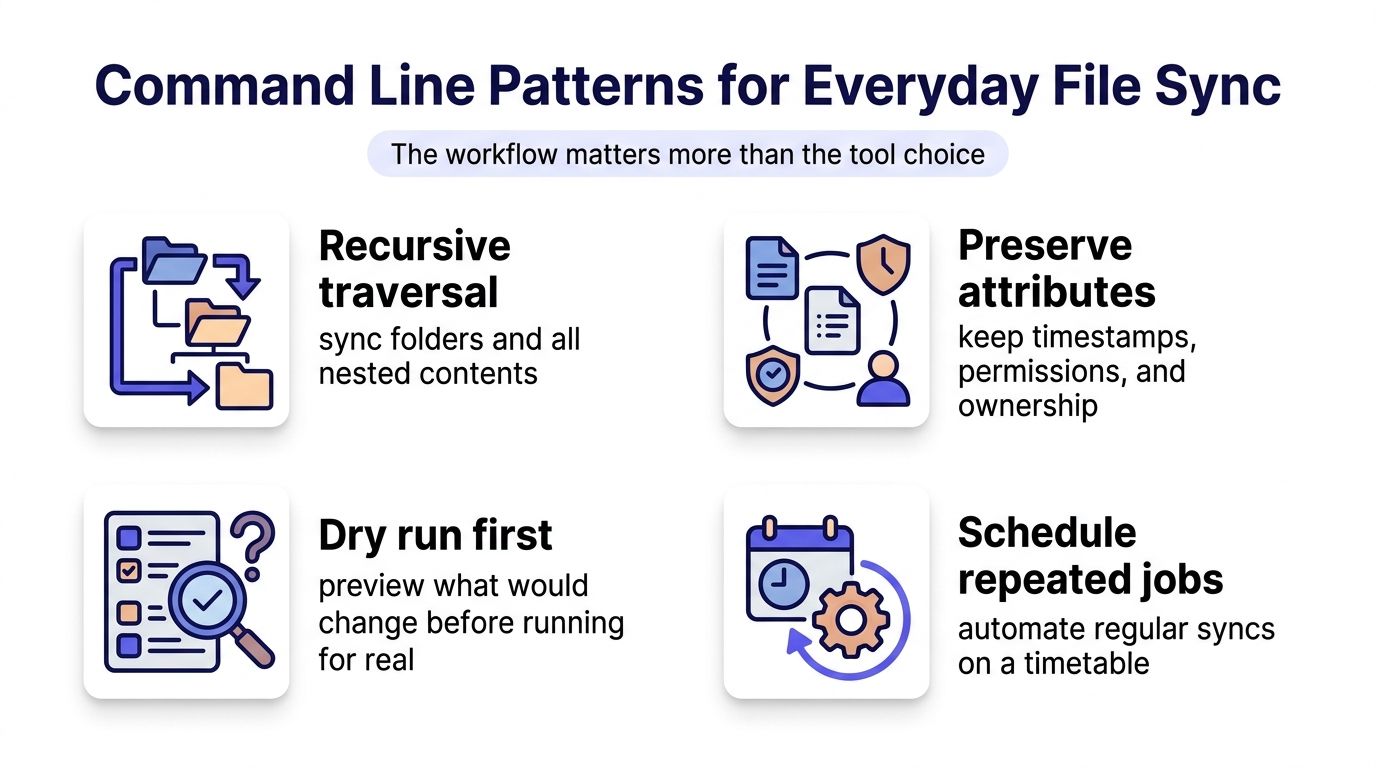
Use a dry run as a preview before any run that can delete, and read it like a diff rather than glancing at the file count. It's a rehearsal, not proof, and it can't tell you whether the destination server is trustworthy or the credentials are too broad. That distinction keeps a useful habit from becoming your entire safety model.
One last quirk saves confusion later. Files can be recopied even when their content looks unchanged, because timestamp precision and filesystem differences make the two sides disagree about identity. A newer modification time isn't the same thing as a different file, and a sync that recopies a tree now and then may be reacting to metadata, not to edits your team made.
Syncing Team Artifacts Across Laptops
Follow one small set of files through a normal week. A Markdown PRD, the transcript from the planning call, and a design export start on one laptop. Both teammates pull the folder down, go offline, and work in whatever editor they prefer, which is exactly the freedom plain files are supposed to give you.
On the first laptop, someone retitles the spec to match the new feature name and tightens the opening section. On the second, someone deletes an outdated export on purpose and rewrites the same opening section from different notes. Neither person did anything wrong. They just created three distinct events, a rename, an intentional deletion, and a genuine conflict, and each one needs different handling.
Rename, Deletion, and a Real Conflict
A rename should travel as a rename. If the tool treats the retitled spec as a deletion plus a brand new file, you lose continuity and invite the old name to reappear from the other machine. The deletion has the mirror problem, because a naive sync sees a missing file on one side and helpfully restores it from the other, resurrecting something the team meant to retire.
The conflict is where one way tools run out of road. Administration documentation notes that rsync copies in one direction at a time and cannot reverse sync or resolve conflicts, a limitation spelled out in SUSE documentation on synchronizing data over a network, whose related material also shows that apparently unchanged files may be recopied because of timestamp precision and filesystem differences. Run that mirror from whichever laptop syncs last and the other person's opening section disappears without a trace.
The outcome you want is boring and auditable. Both versions of the edited section survive, labeled well enough that a human can merge them in minutes. The rename is recorded as the same document continuing, the deletion stays deleted, and the whole set points back to the conversation where the decisions were made.
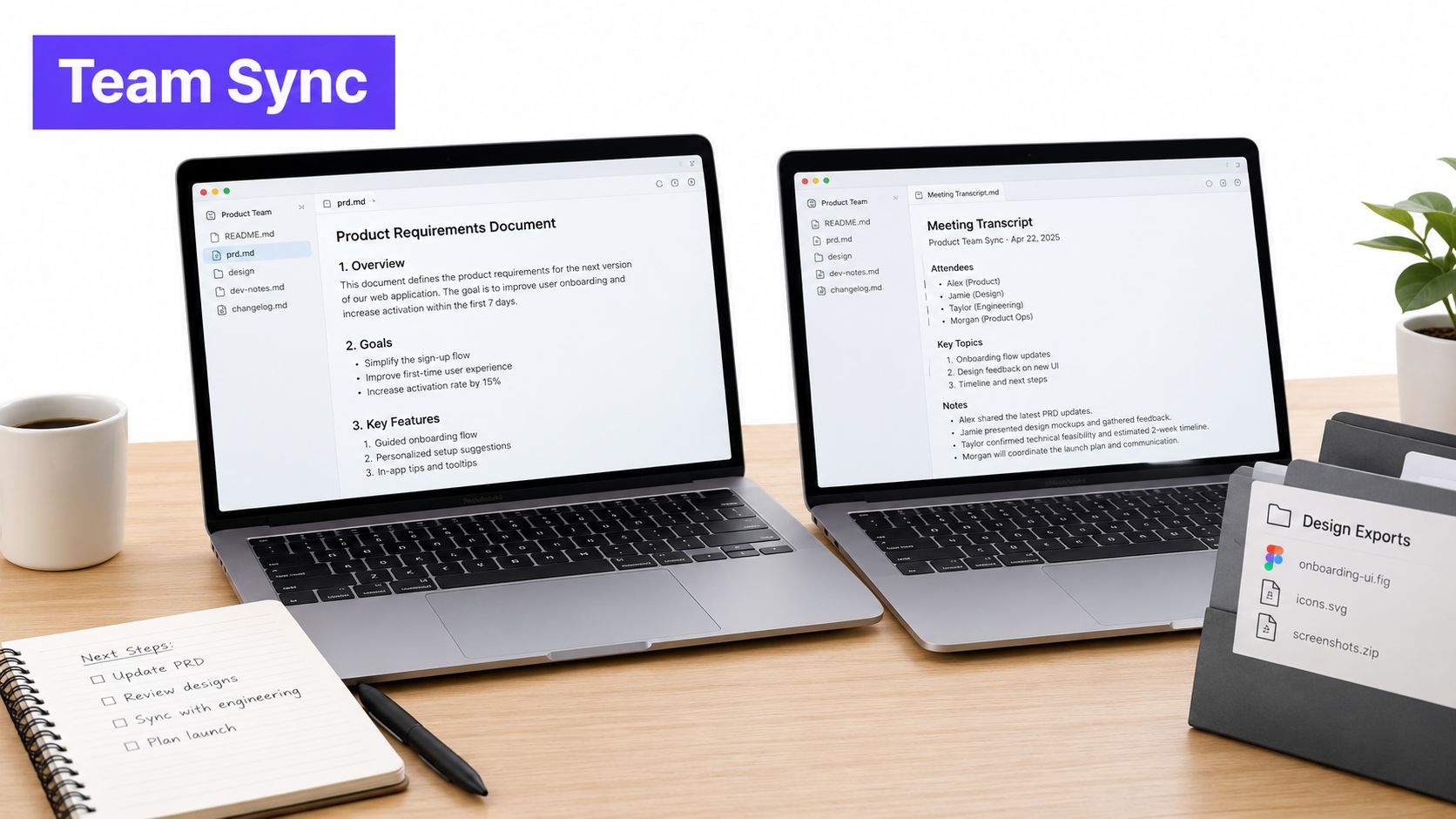
That's the class of artifact Stoa is built around. Live room context becomes plain files, the CLI syncs them for local first use on Mac and Windows, and teammates keep working in their own editors while agents draft PRDs and code that stay traceable to the conversation, an approach rooted in what local first software means for team tools. The sync is plumbing. The value is that a decision, its transcript, and the resulting document stay connected after everyone closes their laptops.
The supporting habits around that loop stay practical rather than theatrical. Sharing localhost for quick feedback, leaving voice memos on pages, and letting unresolved questions resurface later all feed the same shared files. When the next sync runs, it's moving context the team can still explain, not just a folder that happens to match.
Your Next Command Line File Sync
Pick one directory this week and name its job out loud. Is it a backup, a deployment mirror, or a folder two people genuinely edit? That single answer determines everything else, and writing it at the top of the script or runbook stops the next person from guessing.
If it's a mirror, run it like one. Snapshot the destination first, exclude generated junk, preview with a dry run, then verify the resulting file set, the deletions, and a checksum on a sample of files instead of trusting the exit code. You'll spend a few extra minutes and buy yourself a rollback path and actual evidence.
If two people edit the same Markdown, stop using a one way newer file rule today. That rule doesn't resolve conflicts, it just hides them until someone notices a missing paragraph in a review. Choose a path that keeps both versions visible, even if the merge itself stays manual, because a visible conflict is a ten minute fix and a silent overwrite is a lost afternoon of reconstruction.
A Three Part Check Before You Run Anything
- Direction: Can changes originate on both sides, and if so, does your tool know that?
- Proof: What will you inspect afterward besides the exit status?
- Conflict: When both sides changed the same file, what survives and who decides?
For team decisions, transcripts, and artifacts that should stay plain files outside a locked in editor, test the loop on something real. Install the local Stoa app, sync one actual meeting's artifacts through the CLI, open them in the editor you already use, and make an offline edit to confirm it reconciles without a silent overwrite. The $50 starting credit covers that experiment on real meeting hours, which tells you more than any synthetic folder of test files.
Do that for one directory before your next planning meeting. You'll end the week knowing whether your sync is a copy, a mirror, or an actual collaboration tool, and that clarity is worth more than another page of flags.
SpecStory builds Stoa, a workspace where product teams turn live conversations into decisions, transcripts, and artifacts kept as plain files and synced through the CLI for local first work in your own editor. If your team is tired of one way copies deciding which edit survives, visit SpecStory, Inc. and sync your next real meeting into files everyone can open, edit, and trace.
Newsletter
Get new posts in your inbox
Bring your team together to build better products. Fresh takes on remote collaboration and AI-driven development.