


Your product team is halfway through a release when the interfaces start pulling people in different directions. A designer checks a dashboard and spots an anomaly. A product manager opens a project board to clarify scope. An engineer switches to a terminal, filters logs, edits a configuration file, and reruns the same workflow until the failure is isolated. Everyone is working on the same product, but each person is using a different control surface.
That daily switching is why the GUI vs command line debate still matters. The choice affects how quickly a new teammate can contribute, whether another person can reproduce a change, how safely a production action can be reviewed, and how much work survives after the original operator leaves.
This isn't a contest between people who prefer buttons and people who prefer terminals. GUI and CLI are task-specific tools. A visual interface is often the shortest path to understanding state, reviewing a design, or monitoring a system. A command line is often the shortest path to repeatable changes, structured data, debugging, and automation.
The command line's modern lineage traces to Unix at Bell Labs in 1969, with Ken Thompson's first Unix shell developed by 1971. Later milestones, including the C shell in 1978, the Korn shell in 1983, and Bash in 1989, expanded the scripting and job-control capabilities that still shape technical workflows. This historical account of Unix and the command line helps explain why terminal tools remain embedded in development and infrastructure work.
The practical question is simple: which interface gives your team the clearest, safest, most repeatable path for this job? The sections ahead map that decision to real product-team workflows, onboarding, collaboration, automation, security, and AI agents.
Table of Contents
- Introduction Why GUI vs Command Line Still Matters
- What GUI and Command Line Actually Do for Teams
- Head to Head Comparison Across Key Criteria
- Productivity Learning Curve and Onboarding Realities
- Automation Security and Collaboration in Hybrid Workflows
- Common Use Cases and When to Prefer Each Interface
- Recommendation How to Choose and Combine Both Effectively
Introduction Why GUI vs Command Line Still Matters
A small team might begin a feature in Figma, discuss it in a shared workspace, create issues in a browser, edit code in an IDE, inspect a deployment dashboard, and finish by running commands against a remote environment. None of those tools is inconsistent with the others. The friction appears when a team treats one interface as the universal answer.
A GUI can make the current state visible. A person can see folders, diffs, charts, permissions, and deployment status without remembering command syntax. That visibility matters when a PM is reviewing a release, a designer is checking a responsive layout, or a new engineer is learning how the system is organized.
The command line exposes operations as text. That makes it valuable when an engineer needs to run the same transformation across many files, combine outputs from several tools, or capture an exact procedure in a script. The terminal doesn't merely replace clicks with typing. It changes the work from a sequence of gestures into a describable process.
Practical rule: Choose the interface based on the shape of the task, not the seniority or identity of the person performing it.
The split has historical roots. GUIs emerged later, with early concepts in the 1970s, then reached mass-market users through the Apple Macintosh and Microsoft Windows in the 1980s and 1990s. The history of command-line interface development and GUI adoption describes why the two paths developed different strengths. GUIs broadened access to computing, while CLIs remained central to technical administration, scripting, and developer tooling.
For a hybrid product team, the decision affects four practical outcomes:
- Onboarding: Can a new contributor discover the next action without memorizing a tool?
- Handoffs: Can another teammate understand what changed and why?
- Repeatability: Can the team run the workflow again without relying on memory?
- Shipping speed: Does the interface reduce the work needed to move from decision to verified result?
The right answer will vary by job. GUI is usually the better starting point for visual context and shared observation. CLI is usually the better foundation for operations that need precision, composition, or version control. A durable workflow lets people move between them without losing context.
What GUI and Command Line Actually Do for Teams
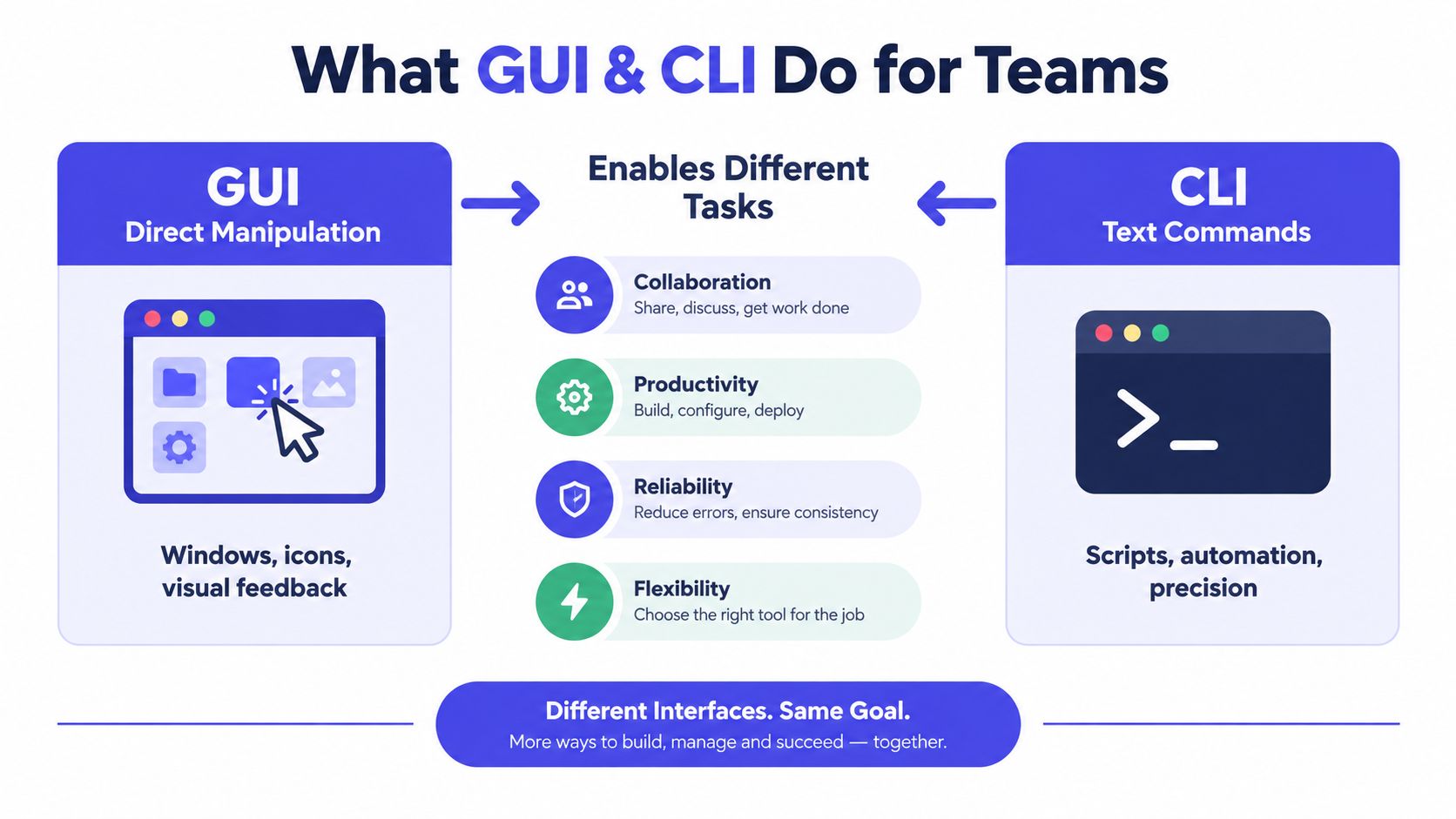
A graphical user interface presents actions through windows, menus, icons, forms, canvases, and visual status indicators. The user manipulates objects directly. To move a file, they might drag it. To inspect a deployment, they might open a service page. To review a design, they might zoom, pan, and comment on the rendered artifact.
A command-line interface accepts text commands through a shell and returns text output. The user names the operation, supplies arguments, reads the result, and can connect one command's output to another command's input. This model favors explicit instructions over visible objects.
Two mental models
GUI work starts with recognition. The interface shows available objects and actions, so users can often find their way by exploring. This lowers the cost of unfamiliar tasks, especially when the operation has strong visual feedback.
CLI work starts with recall and composition. The operator needs to know the command or discover it through documentation, help output, shell history, or a teammate's script. In return, the operation can be stored as text, reviewed in a pull request, and executed consistently.
That distinction shapes collaboration. A screenshot of a GUI can show what someone saw, but it might not capture every setting, filter, permission, or preceding action. A command can show the requested operation, but it might not communicate the broader system state unless the operator records the output and context.
Why both interfaces remain useful
The Unix lineage made the CLI a foundation for portable administration across Unix, Linux, and server environments. Small tools can be combined into workflows, and scripts can run without a person repeating every click. This is particularly useful for Git operations, test execution, local development setup, log filtering, and infrastructure tasks.
GUIs followed a separate path centered on direct manipulation. Their strength is not only ease of use. Visual interfaces help people compare spatial relationships, inspect changing state, and communicate with teammates who don't need to learn the underlying command model.
A team should therefore treat the two interfaces as complementary layers:
- GUI for orientation: Understand what exists, where it is, and what state it's in.
- CLI for execution: Apply precise operations that should be repeatable or composable.
- GUI for review: Share visual results, monitor outcomes, and gather feedback.
- CLI for recordkeeping: Preserve procedures as scripts, configuration, or versioned documentation.
The best workflow isn't the one that forces everyone into one tool. It's the one that makes the transition between visual understanding and textual execution explicit.
Head to Head Comparison Across Key Criteria
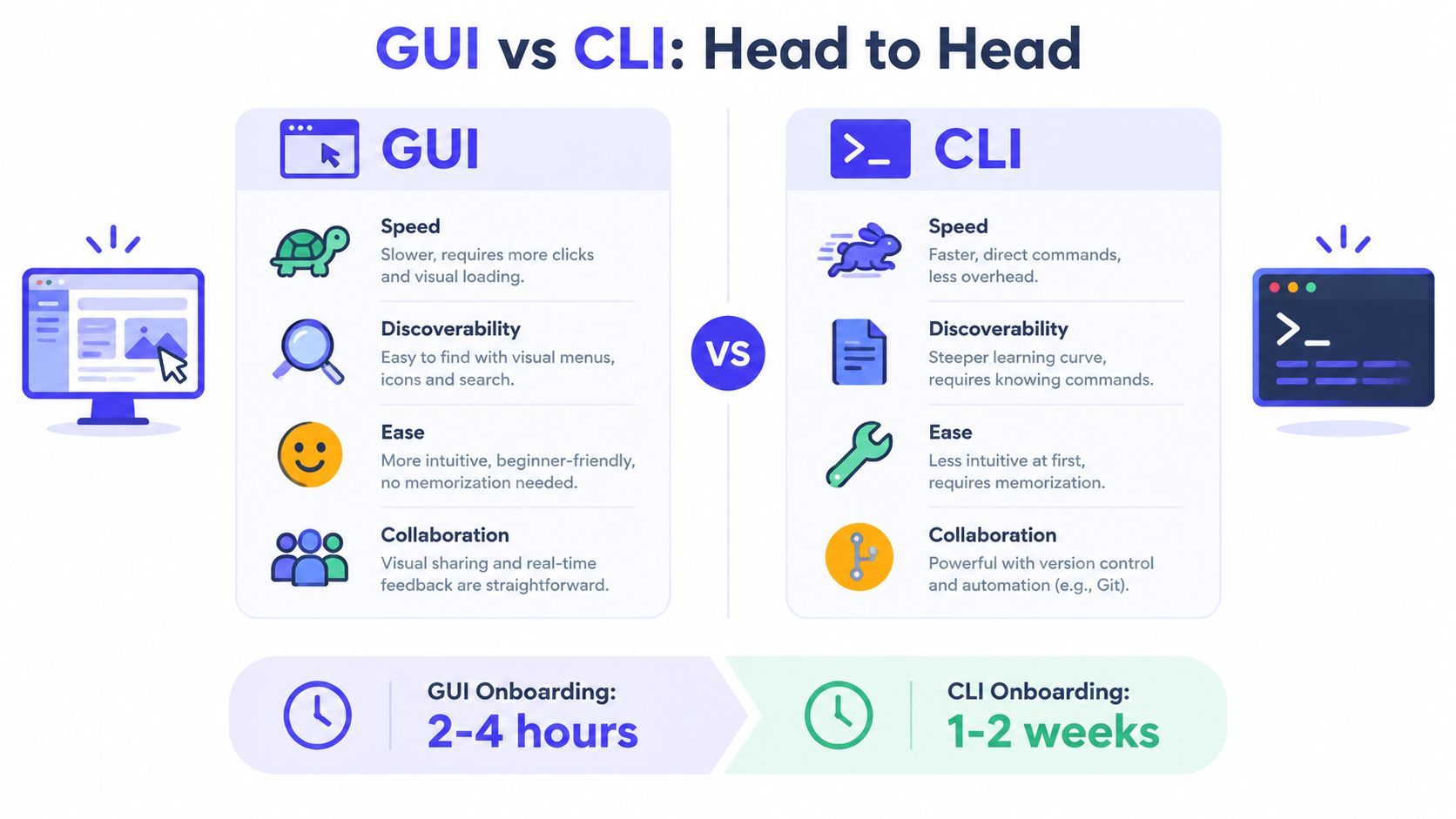
The practical comparison depends on what the team values in a given task. Speed isn't always typing speed. A GUI may get a person to the correct action faster when the system is unfamiliar, while a CLI may be much faster once the workflow is known and repeated.
| Criteria | GUI Strength | CLI Strength |
|---|---|---|
| Speed | Fast for exploratory and visual tasks | Fast for repeated, scripted operations |
| Precision | Shows context and selectable options | Makes arguments and targets explicit |
| Automation | Supports integrations and workflow builders | Enables scripts, pipelines, and batch work |
| Discoverability | Menus and visual states reveal options | Help, history, and documented commands reveal procedures |
| Error handling | Visual warnings and guided recovery | Exact output, exit status, and controllable failure paths |
| Resource use | Rich context and immediate visual feedback | Lightweight remote and headless operation |
Speed and precision
GUI tools work well when the operator needs to inspect before acting. A deployment dashboard can show service health, recent events, and related resources in one view. A design tool can reveal spacing, hierarchy, and responsive behavior directly.
CLI tools win when the action is already understood. Running a test command, applying a formatter, searching a repository, or checking a known status requires little navigation. The command also makes the target visible in the operation itself, reducing ambiguity around which environment or file is involved.
The fastest interface is the one that minimizes uncertainty, not necessarily the one that minimizes keystrokes.
Automation and discoverability
CLI commands can become shell scripts, Make targets, CI jobs, or documented runbooks. That gives teams a durable path from one successful operation to a repeatable process. GUI workflows can also support automation through APIs, integrations, and visual workflow builders, but the underlying action may remain hidden behind application state.
Discoverability reverses that advantage. A GUI can teach by showing controls. A CLI can feel opaque until a teammate provides a command, an alias, or a script. Teams should invest in clear command documentation rather than assuming that terminal fluency appears automatically.
For teams building broader AI workflow automation, this distinction matters. An automated workflow needs an explicit trigger, a known action, and a way to inspect the result. A GUI can provide the review surface, while a CLI or API often provides the execution layer.
Errors, resources, and collaboration
A GUI can prevent some mistakes by constraining choices and showing warnings before an action completes. It can also hide important details. If the interface applies defaults or remembers filters, two people may believe they performed the same action when their underlying contexts differed.
The CLI exposes raw output and usually makes failure states easier to pipe into another operation or test in automation. It also introduces its own hazards. A mistyped target, an unsafe script, or an unnoticed permission context can cause damage quickly, so teams need review, least privilege, and safe defaults.
GUI applications generally consume more local resources because they render rich views. CLI sessions are often better suited to remote servers, containers, and headless environments. Collaboration favors the GUI for shared observation and the CLI for shared procedures.
A useful perspective on the surrounding product experience is Vision for product teams, particularly when a team is deciding whether it needs a polished interface, a clearer workflow, or both.
Productivity Learning Curve and Onboarding Realities
A new teammate can open a GUI, inspect visible states, and complete useful work before learning the system's vocabulary. That makes it a practical entry point for designers, PMs, support staff, and engineers entering an unfamiliar codebase or operational environment. The first-session advantage matters, especially when the task depends on context rather than speed.
The CLI becomes more productive once the workflow is familiar. Shell history, aliases, repository conventions, and known commands reduce repeated navigation. A command can be copied into documentation, adapted for a related task, or turned into a script. The interface decision should follow the job. Use the GUI to expose context and the CLI to repeat well-understood operations.
What new teammates need
CLI-first onboarding fails when it presents commands without a mental model. GUI-first onboarding fails when it teaches clicks without explaining the operation underneath. A useful path connects both control planes:
- Start visually: Show the repository, service, dashboard, or artifact and explain its purpose.
- Perform the task: Let the learner complete the work through the interface that makes the workflow easiest to understand.
- Reveal the repeatable form: Provide the command, script, shortcut, or documented procedure for recurring work.
- Verify the result: Show where the team checks success, failure, and side effects.
A 2015 Git survey found strong CLI adoption among its technically oriented respondents. The study reported that 97% of respondents used the Git command line, while 8% used a graphical user interface, and 78.2% of 367 respondents said they started with Git using the CLI rather than a GUI. Those figures describe that sample, not every software team, so they should guide discussion rather than define an onboarding requirement. The study and its reported Git interface patterns
Designing for accumulated skill
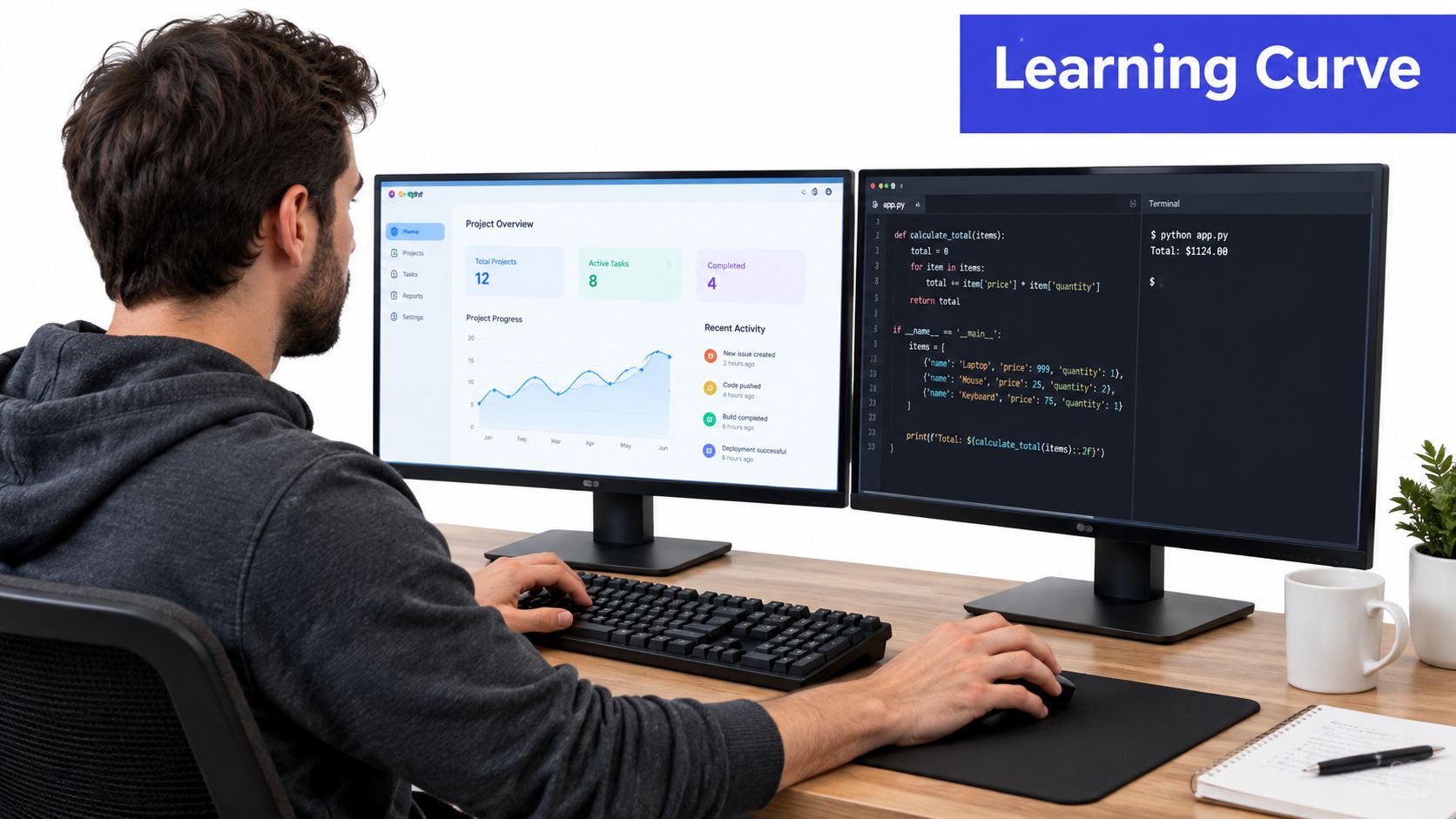
A learning curve is acceptable when frequent work repays the training cost. It is poor design when a visual workflow carries information that the command cannot show clearly. Small product teams should assign each task to the interface that preserves the right context while reducing repeated effort.
Track friction through repeated questions, setup steps that cannot be reproduced, unclear handoffs, and time spent searching for a screen or command. Improving developer experience through clearer workflows means giving every role an accessible entry point, then offering a path toward deeper automation as its skill and responsibility grow.
Automation Security and Collaboration in Hybrid Workflows
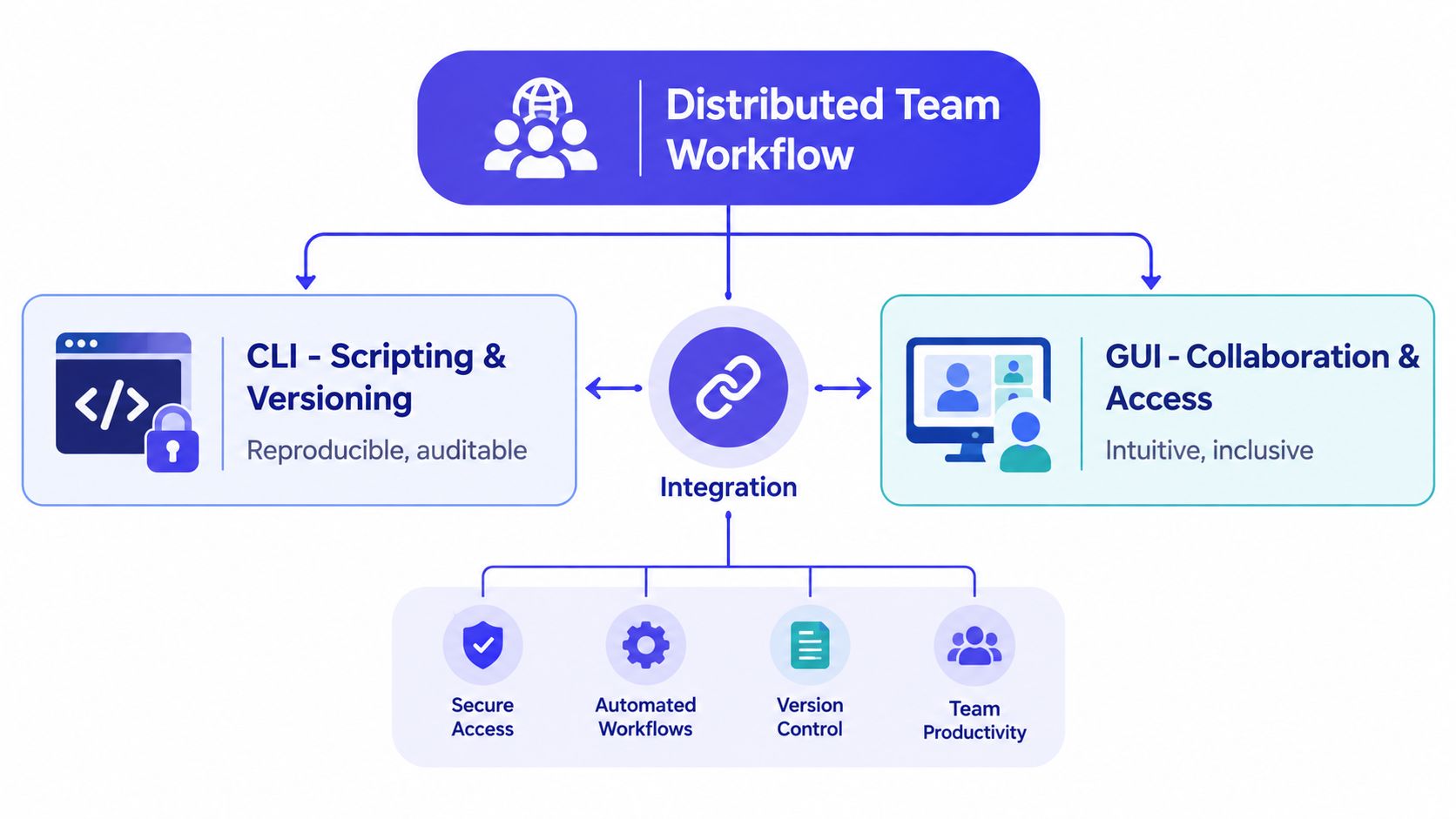
A hybrid workflow works when the GUI and CLI have different responsibilities. The GUI provides shared visibility, approval context, and accessible review. The CLI provides scripts, versioned configuration, and repeatable execution. Problems arise when a team uses a visual action for a recurring operational task but never records what happened underneath.
For example, a product manager might approve a release in a dashboard after reviewing a visible checklist. An engineer can then run a documented command or CI workflow that performs the deployment, records output, and points back to the approved change. The team gets both human-readable context and machine-repeatable execution.
Security follows the execution path
The interface doesn't determine whether a workflow is secure. Permissions, review, logging, and recovery do. A GUI can make a dangerous action look harmless if it hides scope. A CLI can make scope explicit while still allowing a careless operator to run the wrong command.
Use separate controls for high-impact operations:
- Least privilege: Give people and automation only the permissions needed for the task.
- Reviewable changes: Store scripts and configuration in version control when they affect shared systems.
- Explicit environments: Make local, staging, and production targets obvious before execution.
- Auditable outcomes: Preserve the initiating decision, the operation performed, and the resulting status.
- Safe recovery: Test destructive actions, provide rollback paths, and avoid relying on one person's shell history.
Collaboration without lock-in
A screenshot helps a teammate understand what the operator saw. A plain-text command or configuration file helps the teammate reproduce what the operator did. The strongest handoff often includes both, plus the reason for the action and the observed result.
Teams should keep durable artifacts in formats that travel across tools. Markdown plans, repository files, scripts, test output, and structured logs can be reviewed in a browser, edited in an IDE, or processed from a terminal. That approach reduces the risk that critical context remains trapped inside one GUI.
When a team is evaluating collaborative coding tools, ask whether the product preserves decisions and execution details together. Shared visibility is useful, but traceability is what lets another teammate continue the work without repeating the investigation.
Common Use Cases and When to Prefer Each Interface
A task-specific policy is more useful than a team-wide commandment. Assign the default interface according to whether the job is primarily about visual judgment, structured manipulation, repeatability, or diagnosis.
CRUD and structured data
For creating, reading, updating, and deleting many records or files, CLI tools usually provide the better operating model. An engineer can filter a dataset, apply a transformation, save the result, and rerun the process after correcting an input. The procedure can be reviewed before execution.
A GUI is safer for exploratory edits where a person needs to inspect individual records and confirm relationships visually. For a small number of high-context changes, the screen may expose information that a terse command would omit.
Debugging and incident response
Debugging often starts in a GUI. Dashboards, traces, charts, and timelines help the team identify where a failure appears and whether it affects users. A terminal then becomes useful for searching logs, reproducing a request, checking dependencies, and running a focused test.
During an incident, avoid making the handoff “check the dashboard.” Record the query, time range, environment, observed symptom, and next command. The GUI supports shared diagnosis, while the CLI preserves the investigative procedure.
Git and code changes
Visual Git clients are approachable for reviewing branches, diffs, and merge conflicts. They can help a new contributor understand the relationship between files and commits. The CLI is often better for composing history queries, scripting checks, applying precise operations, and moving quickly through familiar repository tasks.
The right choice also depends on the person's error surface. A GUI can make a conflict easier to inspect. A CLI can make the exact operation easier to document. Teams should teach both rather than treating one as a test of engineering credibility.
Monitoring and visualization
Monitoring belongs primarily in a GUI because people need trends, relationships, thresholds, and visual anomalies. A command line can retrieve the underlying data or support a quick diagnostic, but it isn't a substitute for a shared visual model when several roles need to interpret system behavior together.
Design reviews and stakeholder demos follow the same pattern. Use the GUI for the artifact and the conversation. Use the CLI behind the scenes to generate fixtures, rebuild assets, or validate the state shown in the demo.
AI-assisted work
AI agents make the interface decision more nuanced. A GUI agent can interact with visible controls, while a CLI agent can use scripts and command-driven tools. The deciding factor is whether the agent has enough skill coverage to perform the task, verify the result, and recover from failure. Teams assessing how to approach deciding on an AI assistant should evaluate the full workflow, not just the model's conversational quality.
Recommendation How to Choose and Combine Both Effectively
Use three questions for every recurring task:
- Does the task need visual interpretation? If people must compare layouts, inspect trends, or review shared state, default to a GUI.
- Does the task need repeatable execution? If the operation runs across environments, files, or releases, invest in a CLI command, script, or CI workflow.
- Can another person verify the result? Choose the interface that leaves the clearest record of the action, inputs, outputs, and decision.
The most practical default for a small product team is GUI for understanding and review, CLI for repeatable execution. That doesn't mean every engineer needs to abandon an IDE or every PM needs to learn shell syntax. It means recurring work should gradually move from personal gestures into shared, reviewable procedures.
AI agents change the balance when their skills are complete and their outputs are verified. A controlled benchmark across 440 tasks, 18 applications, and 12 workflow categories found that the strongest GUI agent achieved a 59.1% full pass rate, while the strongest original-skill CLI agent reached 48.2%. With verifier-guided skill augmentation, CLI success rose to 69.3%, as reported in the benchmark's results. The useful conclusion isn't that CLI agents always win. It's that incomplete skill coverage can limit an interface, and verification can materially change the result.
Start with an audit of your last few weeks of work. Mark each task as visual review, one-off manipulation, repeated transformation, debugging, monitoring, or deployment. Keep the GUI where it reduces uncertainty, turn repeated CLI work into scripts and runbooks, and require agents to show both the action and the verification.
For teams that want conversations, decisions, and terminal work to remain connected, SpecStory, Inc. offers a workspace that captures shared discussions and artifacts while its CLI can run coding agents and save their sessions to Markdown. Visit the product site to see whether that approach fits your team's need to move from agreement to executable, traceable work.
Older
Story Point Estimation Made Simple for Agile Teams
Newer
AI Agent Workspace Guide for Product Teams
Newsletter
Get new posts in your inbox
Bring your team together to build better products. Fresh takes on remote collaboration and AI-driven development.